Tuto
HelloWorld!
based on pinetime 0.11, upgrade will come soon
Create src/displayapp/screens/HelloWorld.h:
#pragma once
#include <lvgl/src/lv_core/lv_obj.h>
#include <cstdint>
#include "Screen.h"
namespace Pinetime {
namespace Applications {
namespace Screens {
class HelloWorld : public Screen {
public:
HelloWorld(DisplayApp* app);
~HelloWorld() override;
bool Refresh() override;
bool OnButtonPushed() override;
bool OnTouchEvent(TouchEvents event) override;
private:
bool running = true;
lv_obj_t * hello_world_label;
};
}
}
}Create src/displayapp/screens/HelloWorld.cpp:
#include "HelloWorld.h"
#include <lvgl/lvgl.h>
using namespace Pinetime::Applications::Screens;
HelloWorld::HelloWorld(Pinetime::Applications::DisplayApp *app) : Screen(app) {
hello_world_label = lv_label_create(lv_scr_act(), nullptr);
lv_label_set_text(hello_world_label, "Hello World ! ");
lv_obj_set_auto_realign(hello_world_label, true);
lv_obj_align(hello_world_label, nullptr, LV_ALIGN_CENTER, 0, 0);
}
HelloWorld::~HelloWorld() {
lv_obj_clean(lv_scr_act());
}
bool HelloWorld::Refresh() {
return running;
}
bool HelloWorld::OnButtonPushed() {
running = false;
return true;
}
bool HelloWorld::OnTouchEvent(Pinetime::Applications::TouchEvents event) {
switch(event) {
case TouchEvents::SwipeLeft:
case TouchEvents::SwipeRight:
default:
return false;
}
}
Edit src/displayapp/Apps.h :
Add HelloWolrd to the Enum:
#pragma once
namespace Pinetime {
namespace Applications {
enum class Apps {None, Launcher, Clock, SysInfo, Meter, Gauge, Brightness, Music, FirmwareValidation, Paint, Paddle, Notifications, Twos, HeartRate, Navigation, HelloWorld};
}
}
Edit src/displayapp/DisplayApp.cpp :
- Add
#include "displayapp/screens/HelloWorld.h"
- Add Case Apps::HelloWorld to DisplayApp::RunningState()
void DisplayApp::RunningState() {
// clockScreen.SetCurrentDateTime(dateTimeController.CurrentDateTime());
if(!currentScreen->Refresh()) {
currentScreen.reset(nullptr);
lvgl.SetFullRefresh(Components::LittleVgl::FullRefreshDirections::Up);
onClockApp = false;
switch(nextApp) {
case Apps::None:
case Apps::Launcher: currentScreen.reset(new Screens::ApplicationList(this)); break;
case Apps::Clock:
currentScreen.reset(new Screens::Clock(this, dateTimeController, batteryController, bleController, notificationManager, heartRateController));
onClockApp = true;
break;
// case Apps::Test: currentScreen.reset(new Screens::Message(this)); break;
case Apps::SysInfo: currentScreen.reset(new Screens::SystemInfo(this, dateTimeController, batteryController, brightnessController, bleController, watchdog)); break;
case Apps::Meter: currentScreen.reset(new Screens::Meter(this)); break;
case Apps::Twos: currentScreen.reset(new Screens::Twos(this)); break;
case Apps::Gauge: currentScreen.reset(new Screens::Gauge(this)); break;
case Apps::Paint: currentScreen.reset(new Screens::InfiniPaint(this, lvgl)); break;
case Apps::Paddle: currentScreen.reset(new Screens::Paddle(this, lvgl)); break;
case Apps::Brightness : currentScreen.reset(new Screens::Brightness(this, brightnessController)); break;
case Apps::Music : currentScreen.reset(new Screens::Music(this, systemTask.nimble().music())); break;
case Apps::Navigation : currentScreen.reset(new Screens::Navigation(this, systemTask.nimble().navigation())); break;
case Apps::FirmwareValidation: currentScreen.reset(new Screens::FirmwareValidation(this, validator)); break;
case Apps::Notifications: currentScreen.reset(new Screens::Notifications(this, notificationManager, Screens::Notifications::Modes::Normal)); break;
case Apps::HeartRate: currentScreen.reset(new Screens::HeartRate(this, heartRateController)); break;
case Apps::HelloWorld: currentScreen.reset(new Screens::HelloWorld(this)); break;
}
nextApp = Apps::None;
}
lv_task_handler();
}
Edit: src/displayapp/screens/ApplicationList.h:
- Increment ScreenList size
- Uncomment std::unique_ptr... CreateScreen3();
#pragma once
#include <memory>
#include "Screen.h"
#include "ScreenList.h"
namespace Pinetime {
namespace Applications {
namespace Screens {
class ApplicationList : public Screen {
public:
explicit ApplicationList(DisplayApp* app);
~ApplicationList() override;
bool Refresh() override;
bool OnButtonPushed() override;
bool OnTouchEvent(TouchEvents event) override;
private:
bool running = true;
ScreenList<3> screens;
std::unique_ptr<Screen> CreateScreen1();
std::unique_ptr<Screen> CreateScreen2();
std::unique_ptr<Screen> CreateScreen3();
};
}
}
}Edit: src/displayapp/screens/ApplicationList.cpp:
Uncomment the createScreen3
ApplicationList::ApplicationList(Pinetime::Applications::DisplayApp *app) :
Screen(app),
screens{app, {
[this]() -> std::unique_ptr<Screen> { return CreateScreen1(); },
[this]() -> std::unique_ptr<Screen> { return CreateScreen2(); },
[this]() -> std::unique_ptr<Screen> { return CreateScreen3(); }
}
} {}Edit CreateScreen3, edit Apps::HelloWorld
std::unique_ptr<Screen> ApplicationList::CreateScreen3() {
std::array<Screens::Tile::Applications, 6> applications {
{{"H", Apps::HelloWorld},
{"B", Apps::Gauge},
{"C", Apps::Clock},
{"D", Apps::Music},
{"E", Apps::SysInfo},
{"F", Apps::Brightness}
}
};Edit CMakeLists.txt:
- Add .cpp to list(APPEND SOURCE_FILES
- Add .h to set(INCLUDE_FILES
list(APPEND SOURCE_FILES
...
displayapp/screens/HelloWorld.cpp
...
set(INCLUDE_FILES
...
displayapp/screens/HelloWorld.h
...Compile
docker run --rm -it -v $(pwd):/sources pfeerick/infinitime-build
DFU is then stored in `build/output`
Adding Images
Archlinux build setup
Main build documentation: https://github.com/JF002/InfiniTime/blob/develop/doc/buildAndProgram.md
CLion setup : https://github.com/JF002/nrf52-baseproject/wiki/Build,-program-and-debug-NRF52-project-with-JLink,-CMake-and-CLion
Prerequisite
Install the following packets:
- aur/nrf5x-command-line-tools
- aur/nrf5-sdk
- community/arm-none-eabi-newlib
- community/arm-none-eabi-gcc
Not sure about:
- community/arm-none-eabi-binutils
- community/arm-none-eabi-gdb
CLion configuration
Base config
Then modify CMake options in CLion>Settings>Build,Execution,Deployment>CMake>CMake options
-DARM_NONE_EABI_TOOLCHAIN_PATH=/usr
-DNRF5_SDK_PATH=/opt/nrf5-sdkJLink
If using JLink to
-DUSE_JLINK=1
-DNRFJPROG=/usr/bin/nrfjprogTroubleshooting
The C (or C++) compiler XXXXXX is not able to compile a simple test program.
If XXXXXXX is not the arm compile : `/usr/bin/arm-none-eabi-g++` or `/usr/bin/arm-none-eabi-gcc`
If you have errors related to checking the compiler works (e.g. "-- Check for working CXX compiler: /usr/bin/arm-none-eabi-g++ - broken") add those two variables :
-DCMAKE_C_COMPILER_FORCED=1
-DCMAKE_CXX_COMPILER_FORCED=1My (Zorvalt) issue came from CLion using "normal" `cc` instead of the arm toolchain.
Install OpenOCD and remote usage with CLion
Introduction
OpenOCD is meant to be run locally but with a few tricks we can execute it on a raspberry pi. The idea will be to forward openocd calls through SSH and forward the port 3333 from the localhost to the raspberry pi.
Setup
Wiring a Raspberry PI (zero, A+, B+,2,3,4)
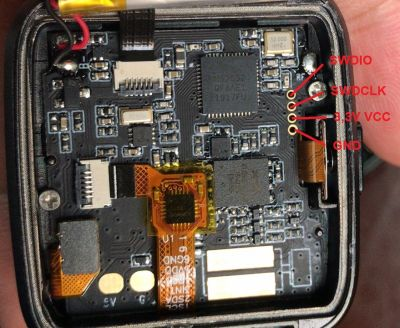
The protocol to flash the Pinetime is SWD. In order to communicate with the Pinetime hardware, the flasher/debugger must be connected to the right pins.
|
|
|
| Pinetime SWD Pinout from https://wiki.pine64.org/wiki/PineTime_Devkit_Wiring |
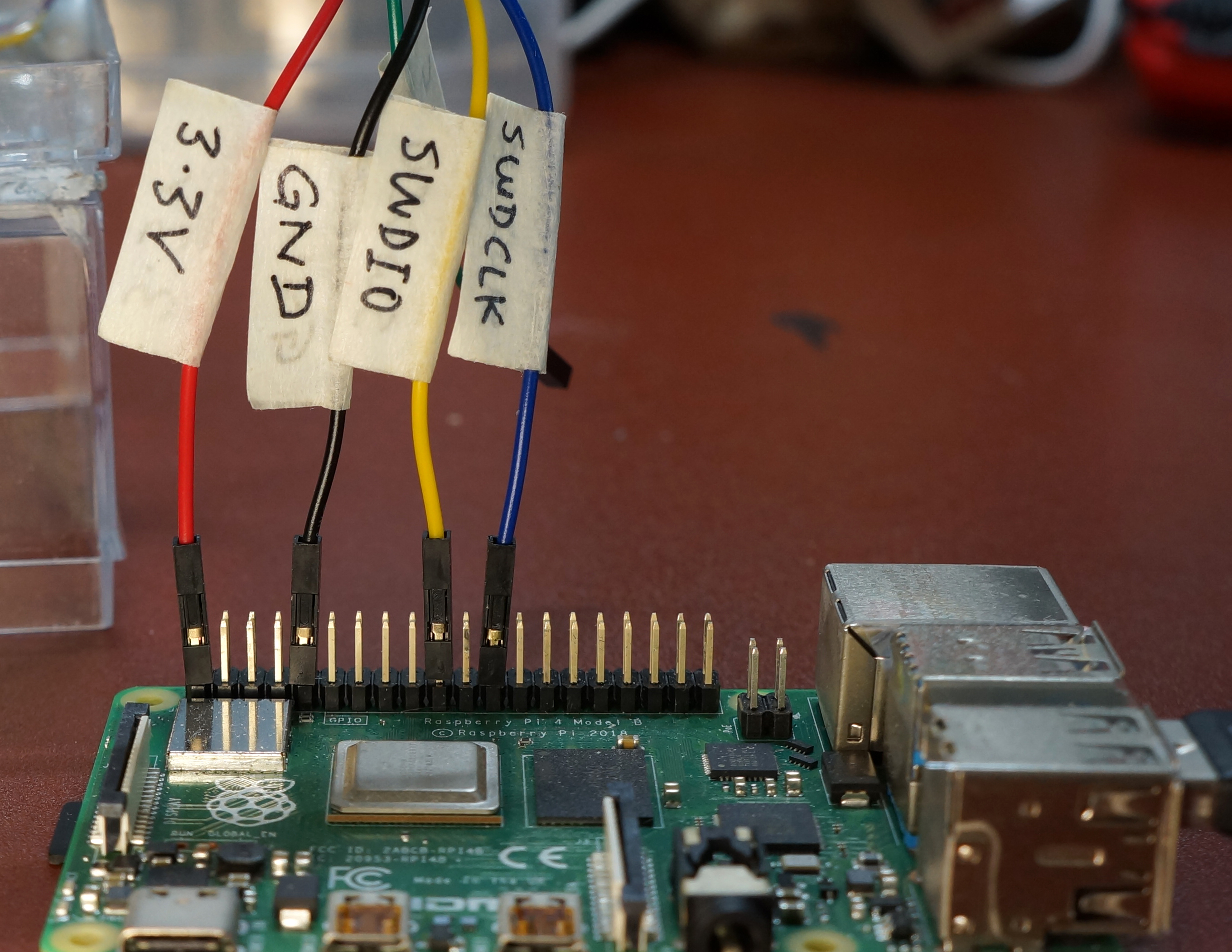
Raspberry PI pinout from https://github.com/lupyuen/visual-embedded-rust/blob/master/README.md#connect-pinetime-to-raspberry-pi Valid for a Raspberry PI zero, A+, B+,2,3,4 |

Small trick: label your cables
Raspberry PI setup
Install raspbian
- For simplicity, imager is a very good tool : package
rpi-imagerat least on Ubuntu and Archlinux repositories or download it from the official website https://www.raspberrypi.com/software/. - Flash your memory card with your favorite Raspberry PI OS (here I suppose raspbian lite)
- Preflight configuration : mount the memory card on your dev system and
- Setup networking by editing /etc/wpa_supplicant/wpa_supplicant.conf and adding the following section
network={
ssid="YOUR_WIFI_SSID"
psk="YOUR_WIFI_PASSWORD"
key_mgmt=WPA-PSK
#scan_ssid=1 # Only needed if wifi ssid is hidden
} - Enable SSH by creating a
sshfile in/boot. By example, runtouch /boot/ssh. - Configure more by reading the documentation : https://www.raspberrypi.com/documentation/computers/configuration.html
- Setup networking by editing /etc/wpa_supplicant/wpa_supplicant.conf and adding the following section
- DO NOT CONNECT THE PINETIME IF IT IS NOT CHARGED, it might drain to much current from the raspberry pins
- Read the point above and then power up your raspberry PI
- Monitor your router or DHCP server to find the PI ip address. Alternatively, you can scan your network with nmap or follow one of the other techniques documented here : https://www.raspberrypi.com/documentation/computers/remote-access.html
- Connect to it through SSH with user
piand passwordraspberry. If mDNS works with your network environment, you can usessh pi@raspberrypi.local.- Good practice : Immediately set a new password using the
passwdcommand. - More security setup documented here : https://www.raspberrypi.com/documentation/computers/configuration.html#securing-your-raspberry-pi
- Good practice : Immediately set a new password using the
- Run
sudo raspi-configto enable SPI- Select Interfacing Options → SPI → Yes
Install OpenOCD-SPI
We need a patched version of OpenOCD to use SWD over SPI. Thus, the version from the official repository won't work. Instead, we'll install the openocd-spi fork by lupyuen : https://github.com/lupyuen/openocd-spi. To simplify the Pinetime debugging operations, lupyuen created a tool called pinetime-updater which installs openocd-spi for us.
- Install required tools :
apt install git
Follow the instructions from the pinetime-updater repository or trust me with this :
# Clone the repo using
git clone https://github.com/lupyuen/openocd-spi.git <-- do we need this ?
git clone https://github.com/lupyuen/pinetime-updater
# Run the bash script
cd pinetime-updater
chmod +x run.sh
./run.shCompilation troubleshooting
If you have compilation errors try reverting to a previous gcc version with the following steps. At the time of writing, the gcc version was 10, so the steps show how to revert to version 9 but you can easily transpose this (dear reader of the future).
- Download previous gcc package
sudo apt install gcc-9 - Setup alternatives using the following two lines (10 and 20 refers to priorities ; bigger == higher)
# Based on a stackoverflow response from Edd Inglis
# https://askubuntu.com/questions/26498/how-to-choose-the-default-gcc-and-g-version
# Remove previous setup
sudo update-alternatives --remove-all gcc
# Add the two options with higher priority for the latest version
sudo update-alternatives --install /usr/bin/gcc gcc /usr/bin/gcc-9 10
sudo update-alternatives --install /usr/bin/gcc gcc /usr/bin/gcc-10 20
# Select the version to use
sudo update-alternatives --config gcc - Execute the
run.shscript again
Create OpenOCD configuration
Create the file /home/pi/pinetime-updater/scripts/debug.ocd with the content:
# This is an OpenOCD script that connects to the nRF52 for Cortex Debug.
# Debug Level must be 2 or greater or gdb will fail.
debug_level 2
$_TARGETNAME configure -event reset-init {
# Arm Semihosting is used to show debug console output and may only be enabled after init event. We wait for the event and enable Arm Semihosting.
echo "Enable ARM Semihosting to show debug output"
arm semihosting enable
}
Host configuration for remote debugging
Local openocd configuration
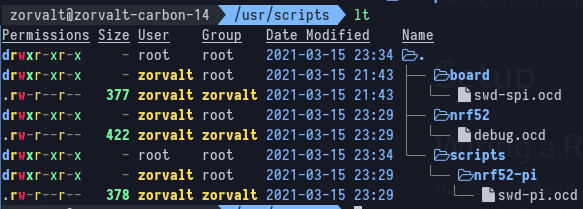
Create the files under /usr/scripts with the same content as the files from /home/pi/pinetime-updater/scripts (same filename => same content).
You should endup with the following tree :
Forward openocd calls
Create the file /usr/bin/openocd with the following content :
#!/usr/bin/env bash
ssh -t -L 3333:localhost:3333 __REPLACE__THIS__ "cd pinetime-updater; openocd $@"
Then replace the __REPLACE__THIS__ placeholder with your raspberry pi user and ip. Example: pi@192.168.1.15.
Do not forget to chmod +x /usr/bin/openocd when you are done.
Configure CLion
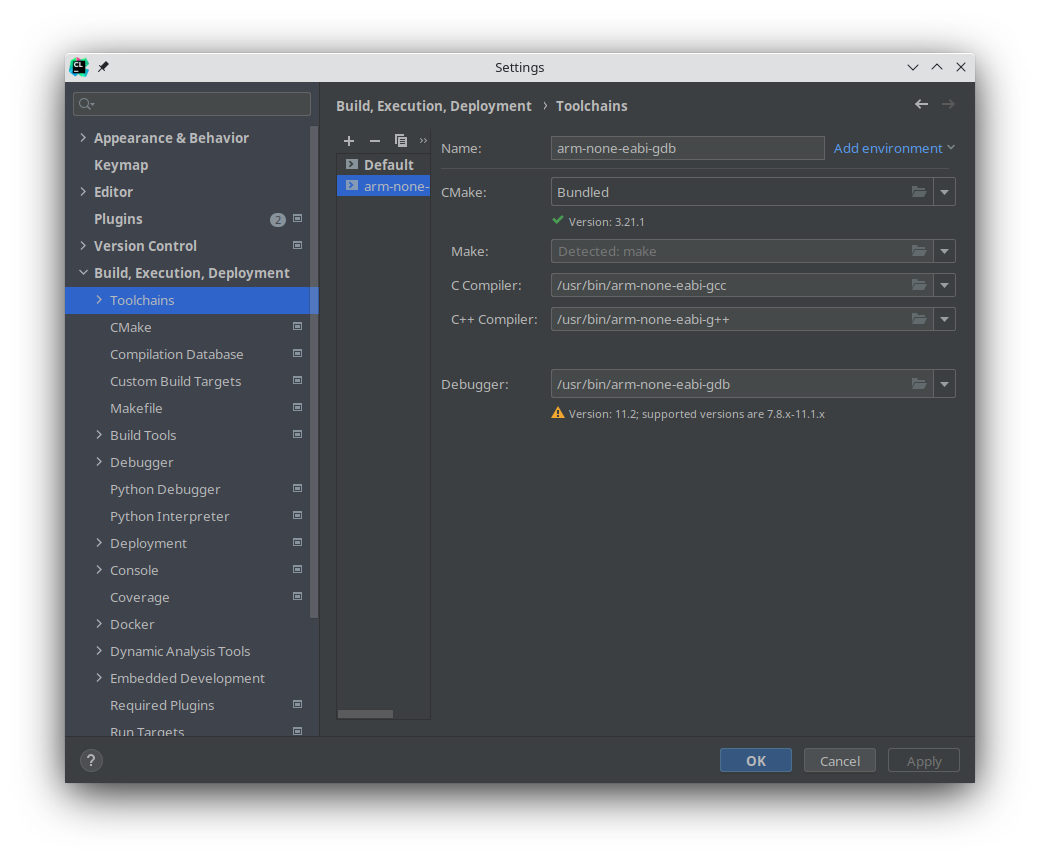
Toolchain
sudo apt-get install gcc-arm-none-eabi gdb-multiarch
sudo ln -s /usr/bin/gdb-multiarch /usr/bin/arm-none-eabi-gdb
CMake
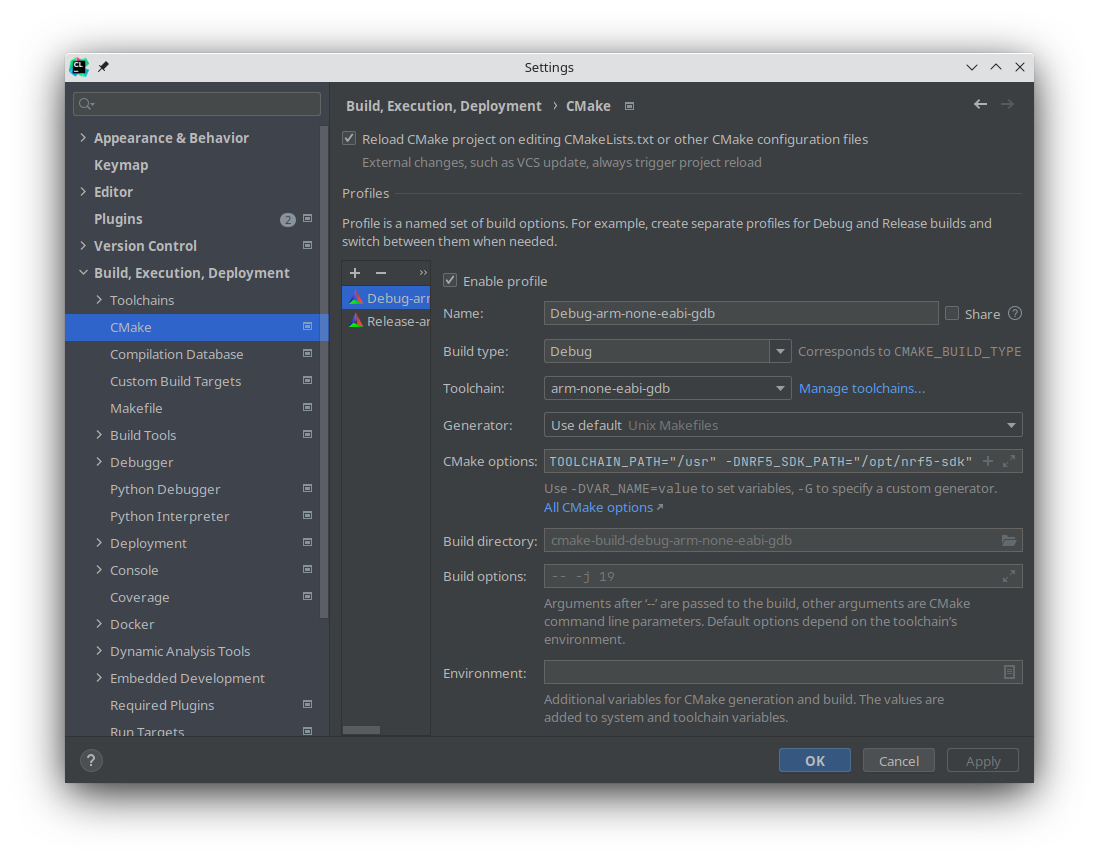 With
With CMake options field content :
-DCMAKE_C_COMPILER_FORCED=1
-DCMAKE_CXX_COMPILER_FORCED=1
-DARM_NONE_EABI_TOOLCHAIN_PATH="/usr"
-DNRF5_SDK_PATH="/opt/nrf5-sdk"
-DNRFJPROG="/usr/bin/nrfjprog"
-DUSE_OPENOCD=1Run/Debug configuration
Pay attention to the Startup delay field. As the openocd command must first connect through SSH before starting a GDB server, you might experience some lag, especially on a Raspberry PI zero. Tune its value to your needs.
